Author name: John

Donncha: Media Picker for Immich: Self-Hosted Photos in WordPress

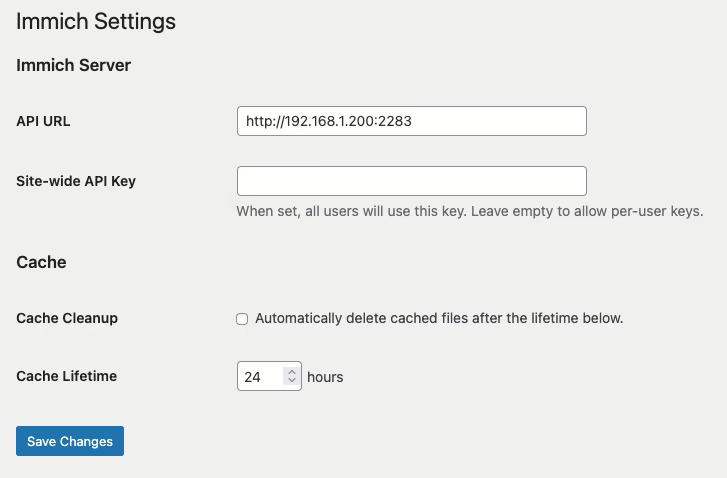
I’ve just released Media Picker for Immich on the WordPress.org plugin directory. It connects WordPress to a self-hosted Immich server so you can browse, search, and insert your photos and videos into posts without copying files around. Immich I run Immich at home. It’s where my photos now live. They’re organised, searchable, with facial recognition and AI search. My WordPress uploads directory is where photos used to go, and the two never talked to each other. This plugin fixes that. How it works Point the plugin at your Immich server and give it an API key. You can set a site-wide key or let each user configure their own to connect to their own Immich account. If the site-wide key is blank, each user adds their own key on their profile page. All Immich API calls happen server-side. Two ways to add media Once configured, an Immich tab appears in two places. The first is the Media Library grid. Switch to the Immich view and you can search, filter by person, and either Use or Copy assets into WordPress. Use creates a virtual attachment. Nothing is copied; WordPress proxies the media from Immich on demand and caches it locally on first request. Your uploads directory stays lean. Copy downloads the original file into wp-content/uploads/ as a normal attachment. The same tab shows up in the “Select or Upload Media” dialog inside the post editor, so you can pull an Immich photo straight into a post without leaving the editor. A few details worth mentioning Videos work too. Proxied videos stream with seek support. Lightbox. Proxied Immich images in posts open a full-resolution lightbox on click. Local cache. Proxied media is cached to wp-content/cache/immich/ after the first fetch. Optional cleanup with a configurable lifetime. Your server stays private. Immich only needs to be reachable from WordPress — not from the public internet. Visitors never connect to Immich directly. When images are copied over, virtually or otherwise, you can insert them into a post like any other image, which also includes adding them to galleries in posts. Get it Install it from the WordPress plugin directory or search for “media picker for Immich” in the plugins page in WordPress. Feedback and bug reports are welcome. Development is done on GitHub here. #Immich #WordPress #WordPressplugin

Donncha: Media Picker for Immich: Self-Hosted Photos in WordPress Read More »

Uncategorized

WordPress.org blog: Celebrating Community at WordCamp Asia 2026

WordCamp Asia 2026 brought the global WordPress community to Mumbai, India, from April 9–11, gathering contributors, organizers, sponsors, speakers, and attendees at the Jio World Convention Centre for three days of learning, collaboration, and community. With 2,281 attendees, the event reflected the scale of the WordPress community and the strong turnout throughout the event. The event unfolded across Contributor Day and two conference days, with a program that moved from technical sessions and workshops to hallway conversations, shared meals, and joyful moments of connection across the venue. From first-time attendees to longtime contributors, WordCamp Asia 2026 reflected the breadth of the WordPress ecosystem and the many ways people shaped and sustained it. WordPress is not a company. It is a shared commitment to keeping the web open. Mary Hubbard, Executive Director, WordPress Throughout the event, WordCamp Asia 2026 balanced formal programming with the conversations happening around it. Sessions and workshops set the pace, while morning networking, tea breaks, lunch, the family photo, the sponsor’s raffle, and the after party in Jasmine Hall helped make the event feel welcoming, social, and connected. How WordCamp Asia 2026 Took Shape Bringing together contribution, practical learning, and forward-looking conversation in one shared program. Across Contributor Day and the conference sessions that followed, attendees moved between hands-on work, technical talks, workshops, and broader discussions about AI, education, enterprise, community growth, and the open web. The result was a WordCamp that felt expansive without losing its sense of connection. Different rooms with topics as themes, helping different audiences, and different forms of participation all fed into the same larger picture: a community actively building what comes next for WordPress as a feeling that something bigger was happening: not just a schedule being delivered, but a community showing up for one another and for the future of WordPress. Contributor Day: Building WordPress Together Contributor Day opened WordCamp Asia 2026 with one of the clearest expressions of what makes the project special: people coming together to move WordPress forward by working on it. More than 1,500 participants joined 38 table leads across more than 20 contribution tables, creating a day that was expansive in scale and grounded in real work. For some, it was a return to familiar teams and longtime collaborators. For others, it was the beginning of their contributor journey. The day moved between structured learning and hands-on participation. Alongside contributor sessions, attendees joined workshops, visited the Open Source Library, took part in YouthCamp, and attended The Making of a WordPress Release: Conversations with Past Release Squad Members, a featured panel that added depth and perspective to the work of building and sustaining WordPress. What made Contributor Day stand out was not only the number of people in the room, but the range of ways they could take part. Workshops created space for skill-building. YouthCamp brought younger participants into the experience and widened the event’s reach in a meaningful way. The day felt welcoming, energetic, and full of possibility. By the end, the impact was already visible across teams. Polyglots contributors suggested more than 7,000 strings and reviewed 3,200 of them. Photo contributors uploaded 76 images. The Test team worked on more than 20 tickets, and 55 contributors joined Training. Those numbers told only part of the story, but they pointed to what Contributor Day continued to do so well: turn a large gathering into shared work that strengthened the project in real time. Conference Sessions Take Shape Across the conference days, WordCamp Asia 2026 covered a wide range of topics, from technical development and hands-on workshops to business strategy and the open web. Sessions took place across the Foundation, Growth, and Enterprise tracks, with workshops running alongside the main program. One of the opening sessions was James LePage’s WordPress and AI, which introduced a theme that appeared throughout the conference: how WordPress is responding to changes in AI, publishing, and developer workflows. That topic continued in later sessions focused on AI-driven development, autonomous testing, plugin maintenance, and automation. Later that morning, a fireside chat with Mary Hubbard and Shilpa Shah shifted the focus toward trust, security, and the longer-term questions shaping open source publishing. Coming early in the program, the conversation gave the conference an important center of gravity, pairing technical change with questions of stewardship, resilience, and what people needed from WordPress as the web continued to evolve. Rather than pulling away from the event’s technical momentum, it deepened it, bringing a human perspective to the pace of change and reminding the audience that progress in open source is not only about what gets built, but about how communities guide, challenge, and sustain that work over time. From there, the conference widened into a program that balanced developer-focused talks with sessions on the Interactivity API, the HTML API, AI-driven development workflows, education initiatives, observability, automation, and startup strategy. On the final day, those threads continued through talks on WP translation, community building, WordPress Playground, data engineering, enterprise WordPress, and journalism on the open web. Together, the two conference days made clear that WordCamp Asia 2026 was designed not for one kind of attendee, but for many. Developers, founders, marketers, contributors, organizers, and people finding their place in WordPress for the first time all found something that spoke directly to their work and interests. The breadth of the program was striking, but so was the feeling that these conversations mattered now. Building What Comes Next WordCamp Asia 2026 closed with reflections from Mary Hubbard, following an opening announcement from Chenda Ngak that WordCamp India will join the calendar in 2027 as the fourth flagship WordPress event. Mary’s remarks tied together several threads that had already surfaced throughout the event: India’s long-standing role in the WordPress project, the growth of programs like Campus Connect and WordPress Credits, the energy of YouthCamp, and the significance of WordPress 7.0. One of the clearest ideas in the session was that WordPress is entering a new phase shaped by real-time collaboration, AI infrastructure, and global contributor growth. That framing

WordPress.org blog: Celebrating Community at WordCamp Asia 2026 Read More »

Uncategorized

How to Set Min & Max WooCommerce Order Limits (& Stop Overselling)

It’s frustrating when customers place orders in your online store that are too small to be profitable, or so large that they deplete your stock and create shipping nightmares. Setting minimum and maximum order limits in WooCommerce solves this problem. It can help you keep your inventory under control, prevent overselling, and grow your business more effectively. In this guide, I’ll show you three proven and easy ways to set these limits in WooCommerce, making sure every order works for your business without any complicated setups. By the end, you’ll have a clear way to control orders, protect your inventory, and keep your store running smoothly, without any complicated setups. 💡Quick Answer: How to Set Minimum and Maximum Order Limits in WooCommerce Here are the 3 easiest ways to set minimum and maximum order limits in WooCommerce: Method 1: Free Minimum and Maximum Quantity for WooCommercePlugin – Best for beginners who need basic minimum and maximum order limits without coding or advanced rules. Method 2: YITH WooCommerce Minimum Maximum Quantity – Ideal for stores that want flexible rules for specific products, categories, or tags, plus global cart restrictions. Method 3: Wholesale Prices (Wholesale Suite) – Perfect for B2B or wholesale stores that need role-based minimum order quantities and bulk order management. Why Set Minimum or Maximum Order Amounts in WooCommerce? Setting minimum or maximum order limits helps you stay in control of how customers place orders. It makes your online store more predictable and easier to manage. Here are some key reasons why store owners use order limits: Avoid Losing Money on Small Orders: Very small orders may not cover shipping, payment fees, or handling costs. For example, if a customer orders just one $2 keychain, you might end up spending more on shipping than you earn. Encourage Customers to Buy More: A minimum limit can gently push customers to add more items to their cart. Manage Bulk or Wholesale Purchases: A maximum limit prevents a single customer from buying too much at once. For example, you can limit purchases to 50 units per customer to ensure other buyers also get stock. Protect Your Inventory: Limits help make sure your stock doesn’t run out too quickly. Improve Shipping Efficiency: Balanced order sizes make packing and shipping more cost-effective and easier to handle. By setting clear order limits, you make life easier for both you and your customers. Inventory stays under control, shipping stays simple, and your store runs more smoothly. Which Method Should You Use to Limit Orders in WooCommerce? Before I dive into the step-by-step methods, you need to choose the right plugin for your store. To make it easier, here’s a comparison showing which plugin works best depending on your store’s setup and needs: Method Best For Cost Minimum & Maximum Quantity Small to medium stores, simple product or category quantity limits, basic cart rules, beginners looking for a quick setup Free YITH WooCommerce Minimum Maximum Quantity Stores needing advanced controls: per-product, per-category, per-tag limits, cart total restrictions, variable products, custom messages $59.99/yr Wholesale Prices + Wholesale Suite B2B or wholesale stores, large bulk orders, customer-role specific rules, complex pricing and quantity setups $99/yr Upon choosing the right tool, you can easily add minimum and maximum order limits to your store. However, before I get into that, you need to have your WooCommerce store completely set up. If you haven’t done that yet, take a look at these guides to get started: WooCommerce Made Simple: Proven Steps to Launch Your Store Today How to Setup B2B eCommerce in WordPress – Beginner’s Guide How to Choose the Best WooCommerce Hosting Company? Fastest WooCommerce Themes (I Thoroughly Tested 22 Options) How Much Do Ecommerce Websites Cost? (Real Numbers) Now, let’s take a look at how to set minimum and maximum order limits in WooCommerce. You can use the links below to jump to the method of your choice: Method 1: Set Order Limits Using a Free WooCommerce Plugin Method 2: Set Order Limits for Specific Products or Categories with YITH (Advanced Control) Method 3: Set Wholesale Minimum Order Amounts (For B2B Stores) Bonus Tips to Use Minimum Order Amounts Without Losing Sales Frequently Asked Questions About WooCommerce Order Amount Limits Method 1: Set Order Limits Using a Free WooCommerce Plugin 🥇Best for: Beginners who need basic min/max order limits without advanced rules. If you’re just getting started or only need simple rules for your products and categories, this method is perfect. For this method, I’ll be using the free Minimum and Maximum Quantity for WooCommerce plugin because it’s easy to set up, beginner-friendly, and doesn’t require any coding. With this plugin, you can quickly control how many items a customer can buy, prevent overselling, and make sure every order meets your store’s needs — all without touching a single line of code. Step 1: Install and Activate the Minimum and Maximum Quantity for WooCommerce Plugin Installing this plugin is straightforward, even if you’re new to WordPress. First, go to your WordPress dashboard and navigate to Plugins » Add New. In the search bar, type ‘Minimum and Maximum Quantity for WooCommerce‘. Look for the one made by Dotstore, then click ‘Install Now’ and ‘Activate.’ 💡 Tip: Make sure you choose the correct plugin, as plugin names can sometimes be similar. Dotstore is the author you want to see to ensure you’re installing the right one. If you’re new to WordPress plugins in general, see our guide to installing WordPress plugins. It walks you through the process, so you can feel confident adding plugins to your store. Step 2: Configure Minimum and Maximum Order Limits Once the plugin is activated, head over to the Dotstore » Min/Max Quantity page from your WordPress dashboard. On this page, click the ‘Add New’ button to create your first rule. This will take you to a new screen where you can start by giving your rule a title. It’s a good idea to use a name that helps you remember what the rule does, since this

How to Set Min & Max WooCommerce Order Limits (& Stop Overselling) Read More »

Uncategorized

Gary: Claudaborative Editing 0.4: Twice the fun!

I’ve been taking an iterative approach to building Claudaborative Editing: build something to prove that the underlying concept works, then evolve on top of that. The first two iterations were answering a question I had: can an LLM genuinely improve the writing process? Along the way, I found a more important question: can it be done without contributing to the masses of generated slop we see? Having seen the underlying idea working, I needed to answer the next question: can it be brought into the actual writing environment? Can it be useful, but keep out of the way? Can you talk to an LLM from within WordPress, and have it talk back? I think I’m onto something, and it’s alot of fun. Coming to a WordPress Near You Naturally, the next step was to build a WordPress plugin that provided a straightforward interface to the LLM backend. You still install the tool to run with your local copy of Claude Code, but once it’s running, you can do everything directly from the block editor. The plugin is waiting to be approved for the WordPress.org plugin directory, but you can download it directly from the GitHub repo now. Tools are easily accessible when you need them, but otherwise stay out of your way. You choose how much input you want the LLM to have in your writing: it can fix things up for you, or you can ask it to just leave notes and you’ll decide how you want to proceed. Personally, I prefer to do the work myself, but everyone can choose their level of comfort. That said, one of the things I often forget to do when writing a post is to tag it properly. If I do remember, I’m never sure what to tag it with. By the time I get to publishing, I’m impatient just to get it out in the world! So, now there’s a button that’ll give suggestions right before publishing, letting you pick and choose which suggestions to use, and what to drop. Planning is a Conversation I always start Claude Code in planning mode, and I wanted that for posts, too. That’s where I started this post, and I can absolutely see myself using this every time I need to write a post. Not to do the writing for me, but to help me organise my thoughts. I opened the Compose mode in the sidebar, I had it summarise the changes that I’ve made in the last 2 weeks, and present a few options for how to collate them. Some I kept, some I dropped. In a lot of ways, it’s more like a very advanced ELIZA, though rather than just reflecting your words back, it reflects your ideas back in a more structured form. What’s next I’ll be honest, I’m really happy with how this has turned out so far! I’d love to hear your feedback as you use it. What would you like to see here? I’ve already noted down a bunch of ideas that came up just while I was writing this post, so there are definitely more things to come! Go ahead and give it a shot now: npx claudaborative-editing start

Gary: Claudaborative Editing 0.4: Twice the fun! Read More »

Uncategorized

Greg Ziółkowski: Research: Architecting Tools for AI Agents at Scale

Loading all available tools into an LLM’s context simultaneously is one of the most consequential architectural mistakes teams make when building AI integrations. The solution isn’t bigger context windows, and it’s progressive tool exposure: dynamically presenting only the tools relevant to each interaction. This post surveys the major patterns for doing so, drawn from production servers, […]

Greg Ziółkowski: Research: Architecting Tools for AI Agents at Scale Read More »

Uncategorized

Weston Ruter: Adding an MCP Server to the WordPress Core Development Environment

I wanted to hook up Claude Code to be able to interact with my local wordpress-develop core development environment via MCP (Model Context Protocol). I couldn’t find documentation specifically for doing this, so I’m sharing how I did it here. Assuming you have set up the environment (with Docker) and started it via npm run env:start. 1. Install & Activate the MCP Adapter plugin The MCP adapter is not currently available as a plugin to install from the plugin directory. You instead have to obtain it from GitHub and install it from the command line. I installed it as a plugin instead of as a Composer package: cd src/wp-content/plugins git clone https://github.com/WordPress/mcp-adapter cd mcp-adapter composer install Next, activate the plugin. Naturally, you can also just activate the “MCP Adapter” plugin from the WP admin. You can also activate it via WP-CLI (but from the project root working directory, since you can’t run this command from inside of the mcp-adapter directory: npm run env:cli — plugin activate mcp-adapter 2. Register the MCP server with Claude Here’s the command I used to register the wordpress-develop MCP server with Claude: claude mcp add-json wordpress-develop –scope user ‘{“command”:”npm”, “args”:[“–prefix”, “~/repos/wordpress-develop/”, “run”, “env:cli”, “–“, “mcp-adapter”, “serve”, “–server=mcp-adapter-default-server”, “–user=admin”]}’ Here’s the JSON with formatting: { “command”: “npm”, “args”: [ “–prefix”, “~/repos/wordpress-develop/”, “run”, “env:cli”, “–“, “mcp-adapter”, “serve”, “–server=mcp-adapter-default-server”, “–user=admin” ] } You may want to remove –scope user if you just want to register the MCP server for the one project. I tend to re-use the same WP environment for multiple projects (core and plugins), so I think it may make it easier for me to install at the user level instead. You will also need to change the –prefix arg’s ~/repos/wordpress-develop/ value to correspond to where the repo is actually cloned on your system. I include this arg here so that when I start claude inside of a plugin project (e.g. inside src/wp-content/plugins/performance), it is able to successfully run the npm command in the package.json in the ancestor directory. You can remove this –prefix arg if this is not relevant to you. Change the user from admin according to your needs. 3. Expose all abilities to MCP Registered abilities are not exposed to MCP by default. This is a safety measure so that AI agents have to be explicitly allowed to perform potentially sensitive actions. So without any plugins active other than the MCP Adapter, prompting Claude with “discover abilities” results in: No abilities found. The MCP server connection may be unstable. Try reconnecting again with /mcp. However, since this is a local development environment, there is no concern about this (for me at least). To opt in all abilities to be exposed to MCP by default, you can use the following plugin code: add_filter( ‘wp_register_ability_args’, static function ( array $args, string $ability_id ): array { if ( // Prevent exposing abilities in MCP except on a local dev environment. wp_get_environment_type() === ‘local’ && // Omit abilities which the MCP Adapter already makes available itself. ! str_starts_with( $ability_id, ‘mcp-adapter/’ ) ) { $args[‘meta’][‘mcp’][‘public’] = true; } return $args; }, 10, 2 ); This is also available in a gist to facilitate installation via Git Updater. Note: This filter does not currently apply if your ability is registered by extending Abstract_Ability in the AI plugin. At this point, I can now open Claude (or re-connect to the MCP server) and see that it is able to see all (er, most) abilities that are registered on my wordpress-develop env with the same prompt “discover abilities”: 3 WordPress abilities available: core/get-environment-info — Returns runtime context (PHP, database, WordPress version) with the ability name. core/get-site-info — Returns site information (all fields or filtered subset) core/get-user-info — Returns current user profile details When I prompt “what’s the environment info?” it executes the core/get-environment-info ability via MCP and prints out: Environment: local PHP Version: 8.3.26 Database Server: 8.4.8 (MySQL) WordPress Version: 7.1-alpha-62161-src Now the environment just needs more abilities! I’ve filed a Performance Lab issue for us at the Core Performance table to work on adding abilities during Contributor Day at WordCamp Asia tomorrow. Where I’ve shared this: LinkedIn Twitter Bluesky Threads Mastodon The post Adding an MCP Server to the WordPress Core Development Environment appeared first on Weston Ruter.

Weston Ruter: Adding an MCP Server to the WordPress Core Development Environment Read More »

Uncategorized

I Tested 10+ Best AI SEO Tools for WordPress to See Which Are Worth It

You can’t just tell AI to ‘do SEO’ on your website and expect to rank at the top of Google. But the right tools can cut hours of repetitive work from your schedule. Many people think AI is just for writing blog posts, but the real time-saving advantage comes from automating technical tasks like internal linking and content optimization. At WPBeginner, we use All in One SEO every day. Its AI-powered features help us optimize content directly inside the WordPress editor. At the same time, we know that every website has different goals and needs. So for this roundup, I tested 10+ popular AI SEO tools for WordPress to see which ones are truly worth using. In this guide, you’ll learn what each tool does best so you can choose the right one for your website. 🧰 Quick Overview: 10 Best AI SEO Tools for WordPress To make things a little easier, I’ve put together a quick overview of the best AI SEO tools for WordPress so you can compare them: Product Best For Free Plan? Starting Price All in One SEO All-in-one SEO inside WordPress – no extra tools needed ✅ $49.50/yr Semrush One Deep keyword research, backlinks, and AI visibility tracking 🟡(Limited free account + trial) $165.17/mo SEOBoost AI-powered content optimization, briefs, and SEO scoring across the full content lifecycle 🟡(Free trial) $22.50/mo LowFruits Finding low-competition keywords 🟡(Free trial) $20.75/mo Link Whisper Internal link building ✅ $97/yr Surfer SEO On-page optimization using live SERP data ✅ $99/mo Frase.io Competitor research and content briefs before you write ❌ $39/mo Jasper AI Scaling marketing content across formats with a consistent brand voice ❌ $59/mo Outranking.io AI drafts you can actually fact-check ❌ $19/mo Rank Math Real-time SEO scoring and keyword suggestions inside WordPress ✅ $7.99/mo Why Use AI-Powered SEO Tools? SEO is one of the biggest factors in whether your WordPress site gets found online. But doing it manually takes time you probably don’t have. AI SEO tools help you work smarter by automating the most time-consuming parts of the process. They can spot keyword gaps, suggest internal links, analyze competitors, and help you write better content faster. Here’s why more WordPress users are turning to AI for SEO: ⏱️ Save hours on keyword research: Instead of spending your afternoon digging through search data, AI tools can suggest the best keywords for your topic in seconds. That means less time researching and more time writing. 📈 Target topics that are actually worth your time: AI analyzes search results and competitor pages to show you what people are looking for and where you have a real chance to rank. No more guessing which topics to write about. ✍️ Know exactly how to improve each post before you hit publish: AI writing tools score your content in real time and tell you what to add, cut, or change. You get clear suggestions instead of wondering why your post isn’t ranking. 🏗️ Automatically connect your related posts: AI-powered internal linking plugins find related content on your site and link them together for you. No more manually hunting down posts to connect. 🔍 Find out which old posts need a refresh: AI can scan your existing content and flag which pages are underperforming. That way you know exactly where to focus your energy instead of starting from scratch every time. 🤖 Generate meta titles and descriptions in seconds: Writing SEO-friendly meta tags for every post is tedious. AI can draft them for you and you just tweak as needed. 🗓️ Do it all inside WordPress: Most AI SEO tools plug directly into your WordPress dashboard. No need to juggle multiple tabs or learn a separate platform. Ultimately, these tools make it incredibly easy to improve your rankings and grow your search traffic without spending hours on manual optimization. How I Evaluated the Best AI SEO Tools for WordPress Testing AI SEO tools isn’t just about clicking around a dashboard. I wanted to see which ones actually help you rank better, actually save you time, and provide a positive return on investment (meaning the time saved and traffic gained outweighs the tool’s cost). I tested each tool on a working WordPress site to see how well it handled everyday SEO tasks. My goal was to find out which ones are genuinely useful and which ones just add noise. Here’s what I focused on during testing: Setup and onboarding: I installed or connected each SEO tool from scratch to see how long it took to get started and whether setup required technical knowledge. WordPress integration: I checked whether each tool worked inside the WordPress editor or required switching to a separate tab or app. Keyword research and suggestions: I ran keyword searches and checked whether the tool’s suggestions were relevant, specific, and based on real search data. Content optimization feedback: I used each tool to analyze existing content and tracked how useful the recommendations were in practice. Internal linking: For tools that offered linking features, I tested how accurately they suggested relevant posts and how quickly I could apply those links. AI content generation: Where available, I tested the AI writing features to see how accurate, readable, and useful the output was without heavy editing. Pricing and value: I compared what each plan includes against its cost to see whether it makes sense for small business owners, growing blogs, or larger teams. This process gave me a clear picture of which tools are worth using and which ones you can skip. Why Trust My Recommendations At WPBeginner, we have over 17 years of hands-on experience with WordPress SEO at every level – from optimizing content with SEO plugins to running in-depth audits and scaling content strategies. Every tool in this list was tested on real WordPress sites. We don’t rely on feature pages or vendor claims. We install, use, and compare tools based on how they perform in actual content workflows that serve millions of readers. For AI SEO tools, we looked at how they handle keyword research, content optimization for AI

I Tested 10+ Best AI SEO Tools for WordPress to See Which Are Worth It Read More »

Uncategorized
Exit mobile version
%%footer%%